How to install the lobstr.io extension
Add the lobstr.io extension to Chrome from the Chrome Web Store and connect your Leboncoin, LinkedIn, or Sales Navigator account, step by step with screenshots.
The lobstr.io Account Sync extension connects accounts such as Leboncoin, LinkedIn, and Sales Navigator to lobstr.io. No coding is needed: you only click buttons in Chrome. It installs from the Chrome Web Store, in Chrome and in the browsers built on Chromium (Edge, Brave, Opera, Arc).
Add to ChromeOpen lobstr.io Account Sync on the Chrome Web Store.
Installed the ZIP version before? Click Remove on its card in chrome://extensions first, then add the Chrome Web Store version. Your lobstr.io accounts are kept, and their sessions keep working while valid.
Install in Chrome
- Click Add to Chrome
Open lobstr.io Account Sync on the Chrome Web Store and click Add to Chrome, then Add extension in the window Chrome opens. lobstr.io then opens Accounts in a new tab by itself.

Sync your account
- Sign in to the website
In the same Chrome window, sign in to the website you want to connect, as you normally do.
For Sales Navigator, make sure you can open Sales Navigator with that account.
- Open Accounts in lobstr.io
Open Accounts in lobstr.io. If the page was already open, reload it so it finds the extension.
Click Connect account.
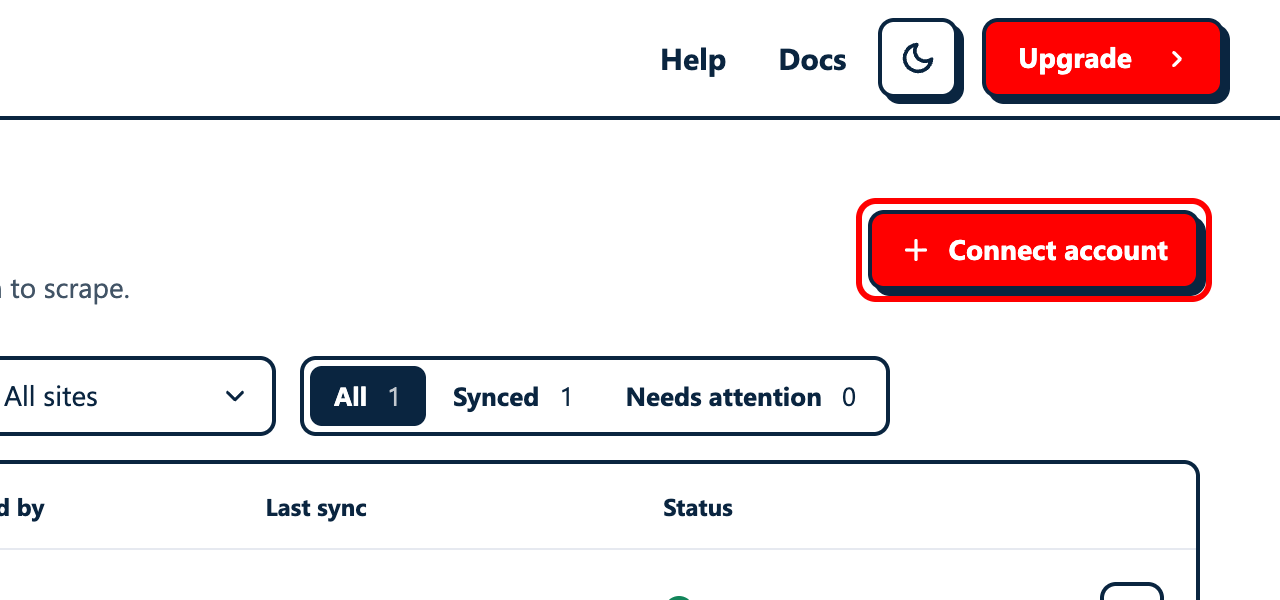
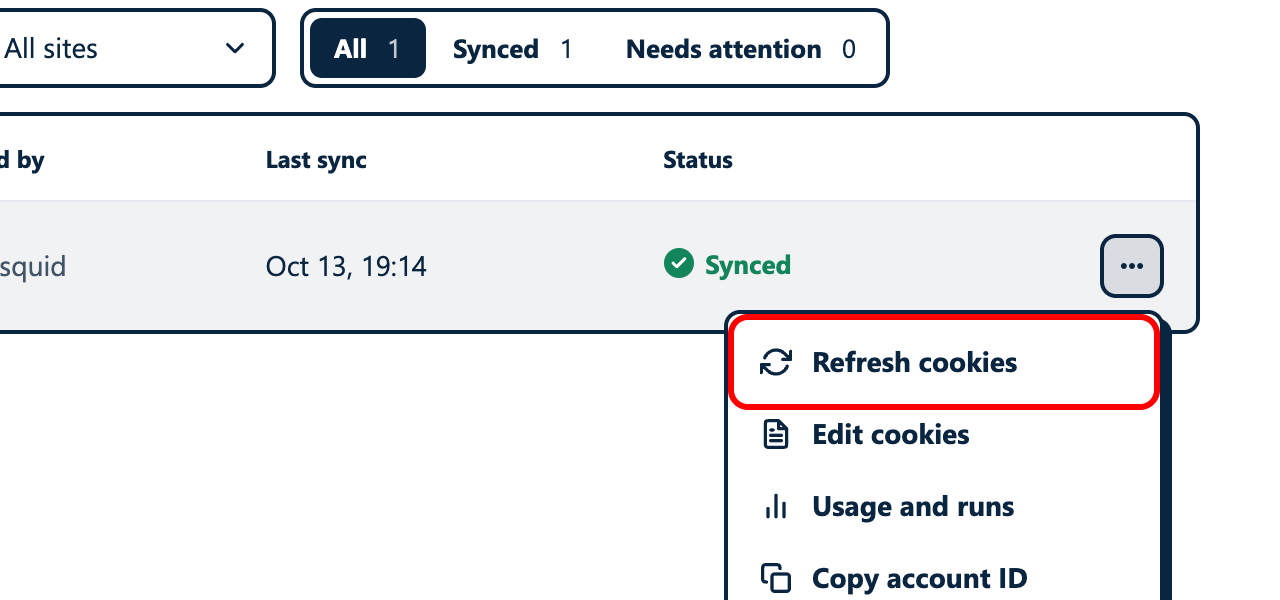
To refresh an account you already added, click ••• at the end of its row, then Refresh cookies, then go to Approve in the extension window.
- Choose the website
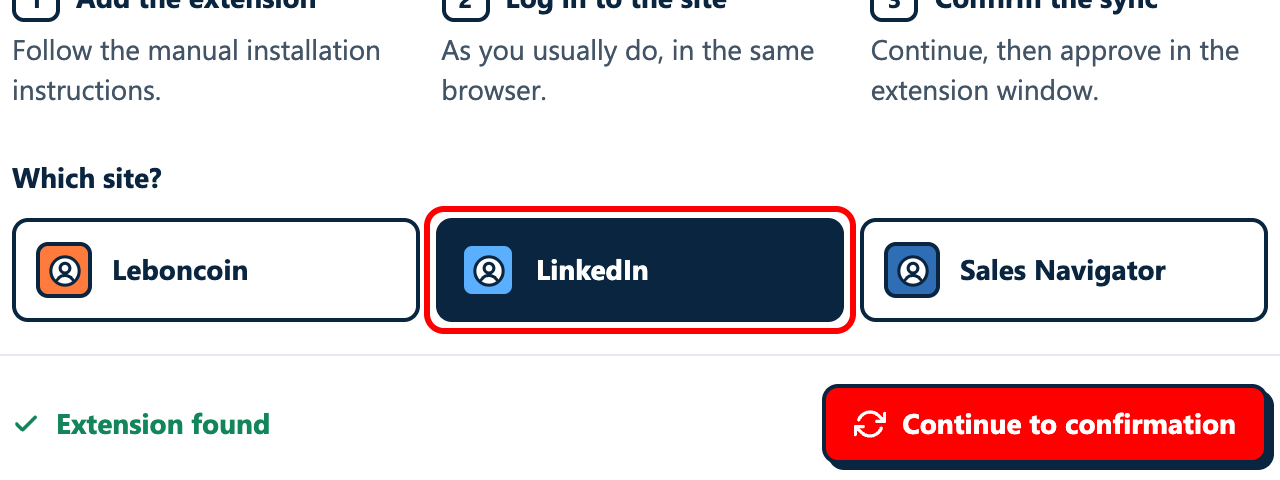
Under Which site?, click the website you want to connect.
- Click Continue to confirmation
The window shows Extension found. Click Continue to confirmation. The extension then opens its own window to ask for your approval: lobstr.io cannot receive your session without it.

If the button reads Install instructions instead, lobstr.io cannot see the extension: see Troubleshooting.
- Approve in the extension window
Check the website shown in the window, then click Approve. If Chrome asks to allow access to that website, click Allow.
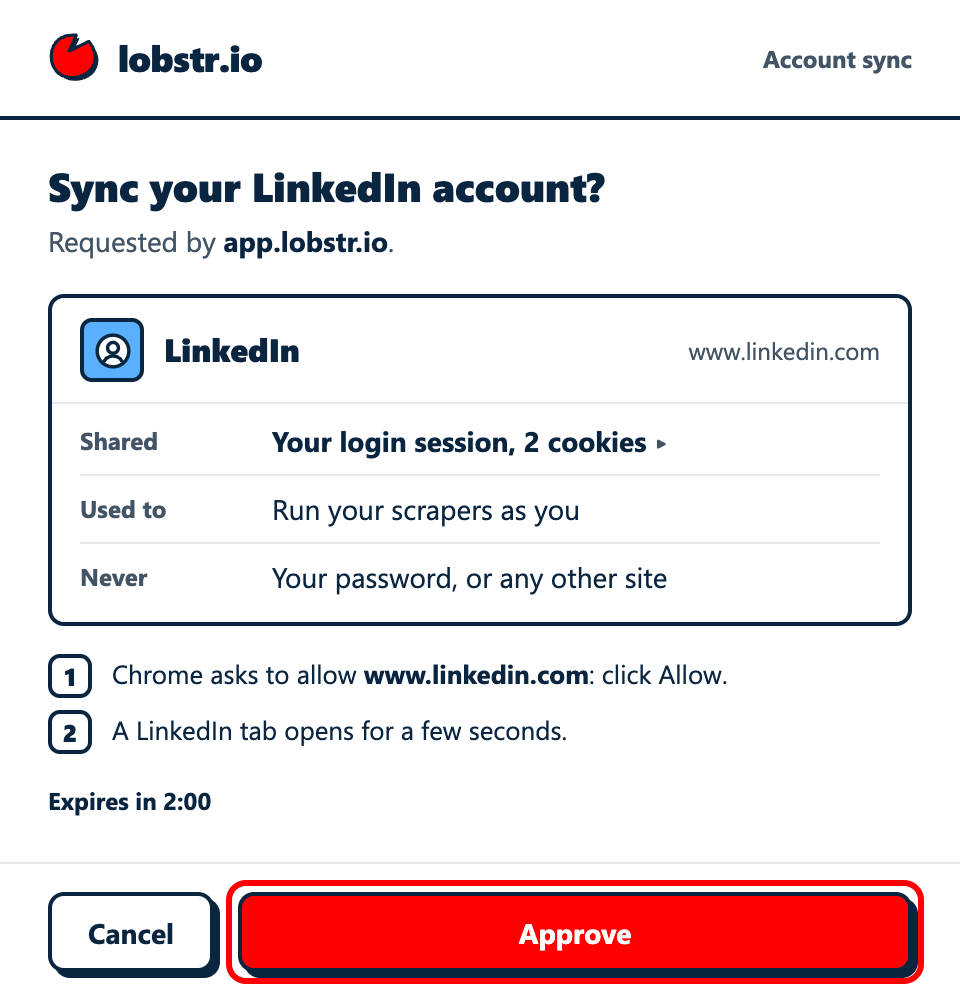
For LinkedIn and Sales Navigator, a LinkedIn tab opens for a few seconds. Sign in there if asked. The tab then closes and you return to lobstr.io automatically. Leboncoin does not open this tab.
Keep the lobstr.io page open until the sync finishes. Closing the extension window cancels the sync.
- Check the result
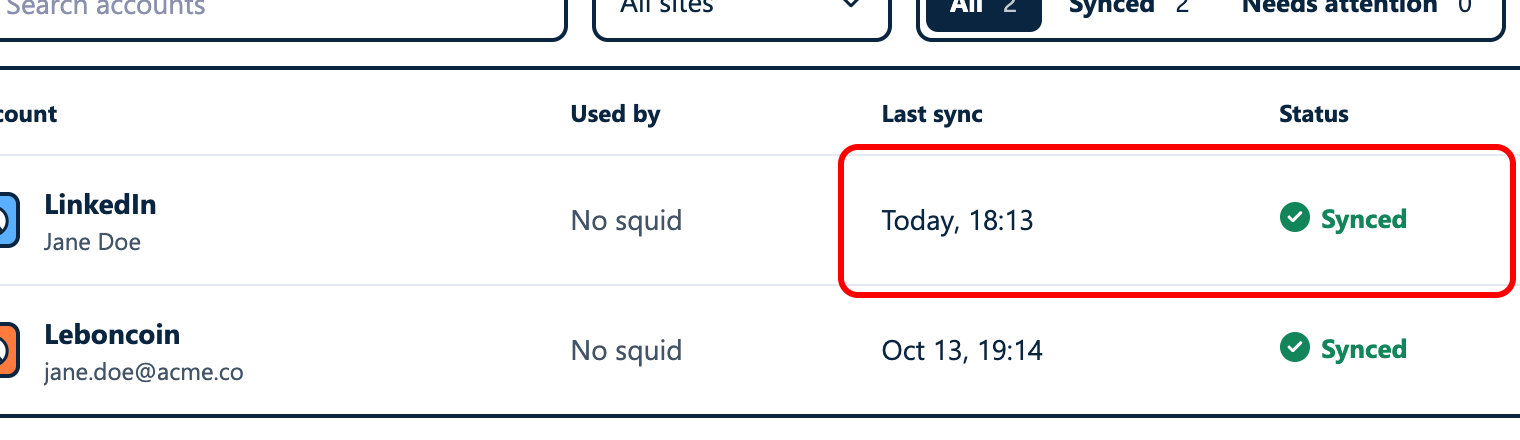
The account shows Synced, and Last sync shows today. If the date is old, the sync did not go through: start again.
For multiple accounts and expired sessions, see Account sync.
Update the extension
The Chrome Web Store version updates by itself. To see which version you have, open chrome://extensions: the lobstr.io card shows it.
Troubleshooting
lobstr.io cannot find the extension
The Connect an account window shows Install instructions instead of Extension found. Check that the lobstr.io extension is on in chrome://extensions, then reload lobstr.io. The extension and lobstr.io must be open in the same Chrome profile.
Keep a single lobstr.io extension: if you installed the ZIP version before, remove it. If you use an incognito window, switch to a regular Chrome window.
lobstr.io says this browser is not signed in, or a Sales Navigator sync fails
The extension found no session for that website in this Chrome profile. Sign in to the website in this window, then start a new sync from Accounts.
If a Sales Navigator sync ends with An error has occurred while you are signed in, open Sales Navigator in this window, wait for its home page to load, then start the sync again.
The sync was cancelled or timed out
The extension window says This request ended: nothing was shared. Go back to Accounts and start a new sync. Approve the extension window and any Chrome access request. Leave the lobstr.io page and any LinkedIn tab opened by the extension in place until the sync finishes.
Can I sync Leboncoin without this extension?
Yes. For an existing account, click ••• at the end of its row in Accounts, then Edit cookies. To add or sync an account through the API, follow the Sync Account API guide with type leboncoin-sync.
You can export your own Leboncoin session with Cookie-Editor. The API expects a cookie name/value object, not Cookie-Editor’s raw array. Include __Secure-Login and, when present, datadome, __Secure-Login-Lax, and __Secure-InstanceId. Request headers are optional for Leboncoin.
Cookies grant access to your account. Submit them only through the lobstr.io app or API; do not send them in chat, email, or screenshots.