How to download scraped results from a lobstr.io batch
Download batch results from lobstr.io as CSV, Excel, JSON, or JSONL — pick your format and the exact columns you need. Results stay downloadable 7 to 90 days, depending on your plan.
After a batch finishes running, all collected data is saved and ready to download. Exports are available in four formats — CSV, Excel (.xlsx), JSON, and JSONL — and you can pick exactly which columns to include.
Download results from an individual run
You can download results from any individual run, including the most recent one.
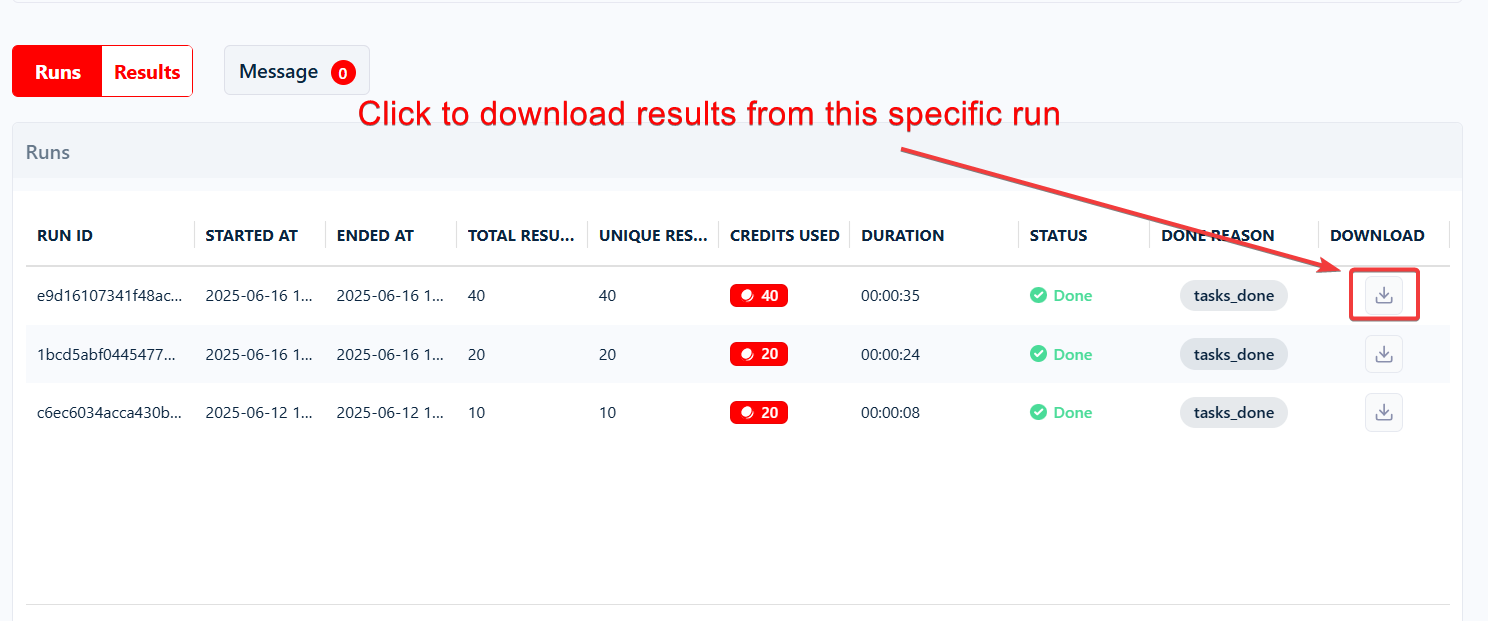
- On the batch's page, find the run in its runs list.
- Click its Download icon, on the right of its row.
- Pick CSV, Excel (.xlsx) or JSON for an instant download, or Choose format and fields for JSONL or to pick the fields.
Download results from the latest run
Click Download at the top of the batch's page, next to Launch, and pick your format. It downloads what the latest run collected. A finished run's own page has the same button.
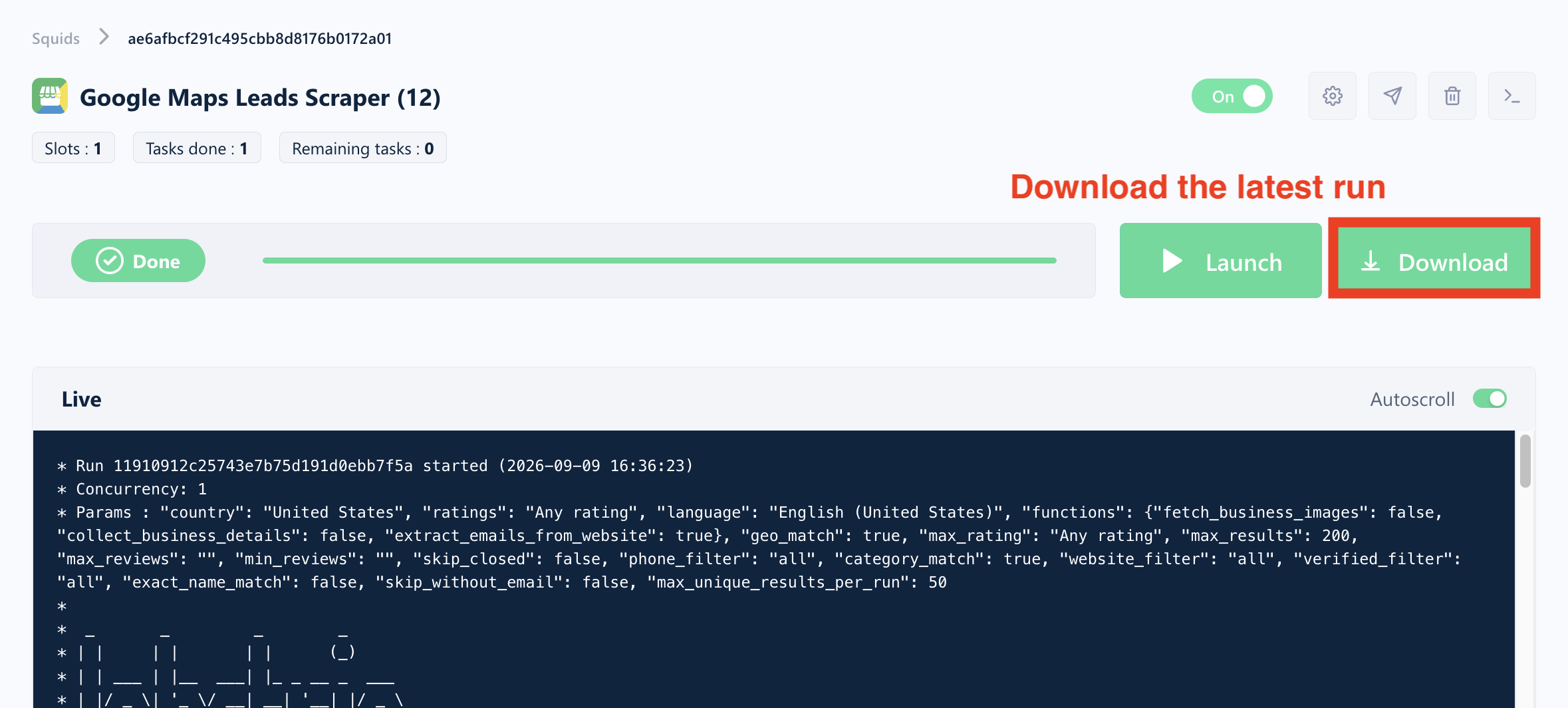
The batch's Download button exports the latest run only. For older runs, download each from the runs list. To automatically archive every run's file as it completes, set up a delivery channel like Amazon S3.
Choose your format and columns
Choose format and fields, in any download menu, opens the Export results window:
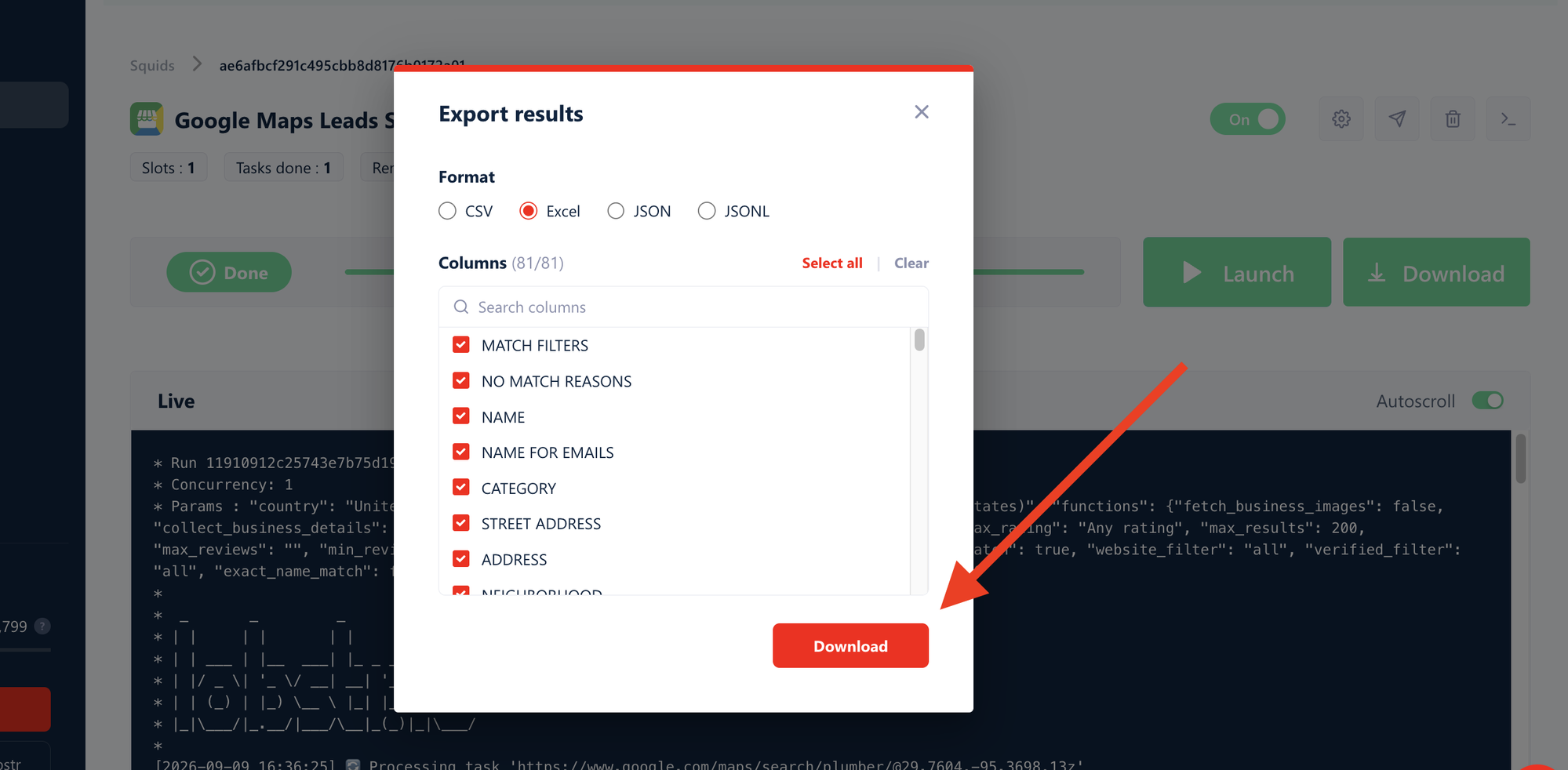
- Format — pick CSV, Excel, JSON, or JSONL.
- Fields — every field is included by default. Untick the ones you don't need, or search for one. The file keeps the order shown.
Click Download: the file has exactly the fields you picked.
Large exports can take a few minutes to prepare. You can cancel the wait at any time — the file keeps being built in the background and downloads instantly the next time you request it.
The same formats and column selection are available through the lobstr.io API with the file_format and fields parameters.
Can I export results to Google Sheets?
Yes. You can set up a batch to automatically push results to a Google Sheet after every run. The sheet always contains the data from the last run — each new run overwrites the previous export.
The Google Sheets export applies to future runs only. Past runs are not retroactively exported.
See the full guide: Export to Google Sheets.
Can I download results as an Excel file?
Yes. Every download button lets you export directly in Excel (.xlsx) format — pick Excel (.xlsx) in the download menu, or Excel in the Export results window to pick fields too. The file opens straight in Microsoft Excel, no conversion needed.
Still have older CSV exports to convert? It takes a few clicks: How to convert a CSV file to Excel.
Can I download results as JSON?
Yes. JSON is in every download menu; Choose format and fields also has JSONL:
- JSON — a single structured array of objects. Best for importing into apps, scripts, and APIs.
- JSONL — one JSON object per line (newline-delimited). Best for large datasets and data pipelines, since each line can be processed independently.
On very wide datasets (2,000+ columns), CSV and Excel exports may not include every column. JSON and JSONL always include them all.
How long is my data available?
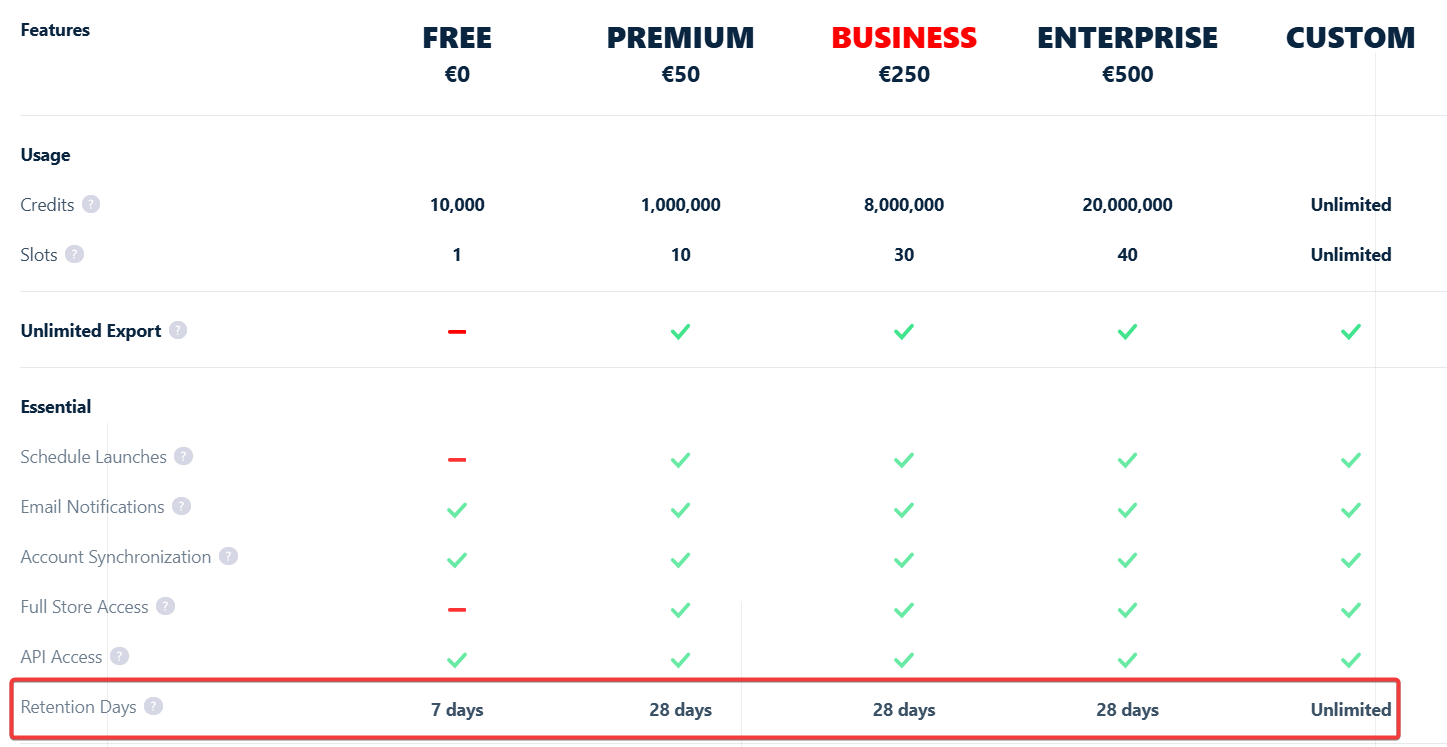
lobstr.io keeps each run's results downloadable for 7 days on Free, 45 days on Starter and Pro and 90 days on Team. Each run shows its expiry date.
That means:
- You can download your run results anytime during that window.
- You can re-download the same run as many times as you need — no limit.
- After that, the results can no longer be downloaded. Paid plans get an email 3 days before. To keep every run, set up a delivery (Google Sheets, Amazon S3...).
For long-term storage, use the Google Sheets export or save your exported files locally as soon as each run completes.