How to sync third-party accounts for login-wall scraping
Connect LinkedIn, Twitter, Facebook, or Leboncoin accounts to lobstr.io using the browser extension to scrape data behind login walls.
Some data on the web is only accessible after you log in — LinkedIn profiles, Twitter feeds, and Leboncoin listings are common examples. To scrape this data, lobstr.io needs to browse as if it were logged in to your account. Account Sync makes this possible.
Sign in directly on the account’s website; the extension does not ask for your password. Before each synchronization, it asks you to approve sharing the supported site’s session cookies with lobstr.io. LinkedIn and Sales Navigator also use session headers.
Add it from the Chrome Web Store, then follow the sync steps, with screenshots and troubleshooting.
Sync your first account
- Install the lobstr.io Chrome extension
Add lobstr.io Account Sync from the Chrome Web Store: click Add to Chrome, then Add extension. Reload lobstr.io after installation. See the installation guide for screenshots.
If you installed the ZIP version before, remove it from
chrome://extensionsfirst. Your accounts and their still-valid sessions are kept. - Log in to the third-party site
In Chrome, go to the website you want to connect — for example, twitter.com or linkedin.com — and log in to your account normally.
Use the same Chrome profile as the extension and the lobstr.io dashboard.
- Sync the account from your lobstr.io dashboard
With the extension installed and you logged in to the third-party site:
- Go to your lobstr.io dashboard and log in.
- Click Accounts in the left sidebar, then Connect account.
- Under Which site?, click the website you want to sync (e.g., LinkedIn, Twitter).
- Click Continue to confirmation.
- Check the website and data listed in the extension’s window, then click Approve. Allow site access if Chrome asks.
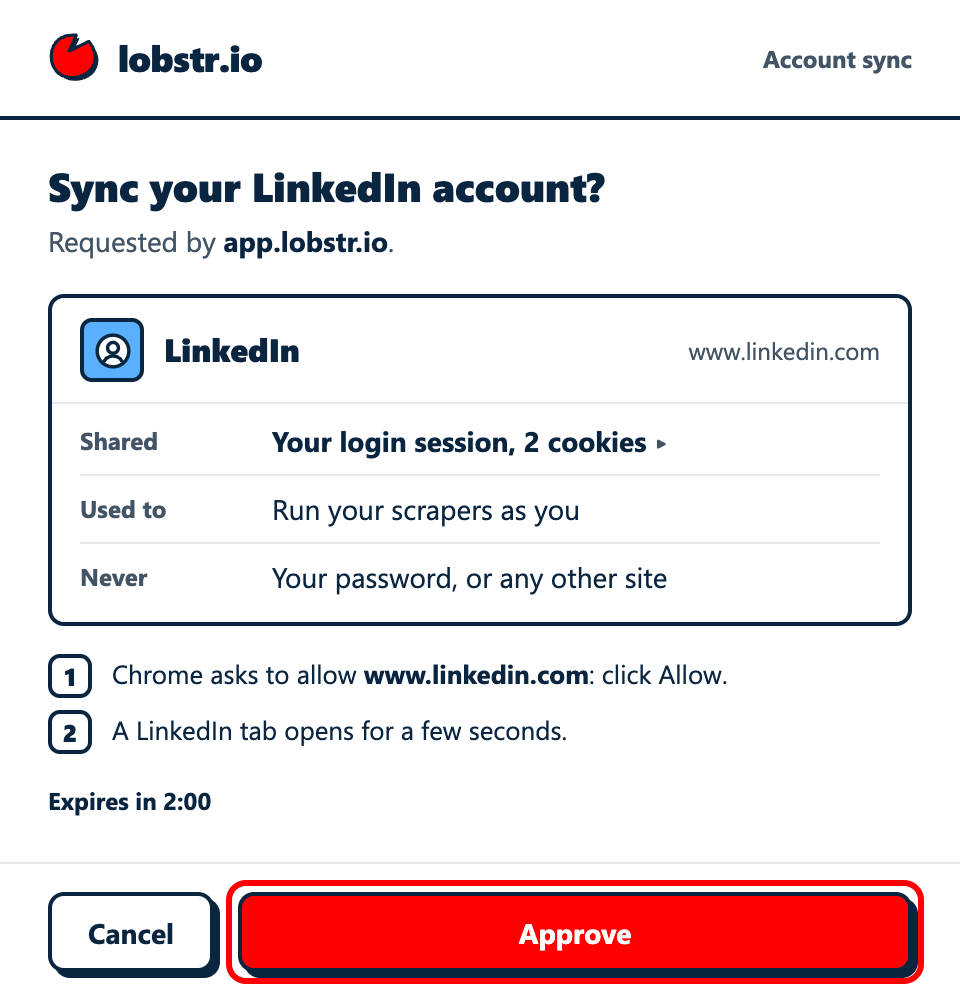
Approve each synchronization in the extension’s own window. Keep the lobstr.io page open until the transfer finishes. For LinkedIn and Sales Navigator, the extension opens a dedicated tab to capture fresh session headers; sign in if asked. The dedicated tab closes after collection and you return to lobstr.io automatically. Leboncoin does not require request headers.
Check that the account shows Synced and that Last sync shows today.
Sync multiple accounts
You can connect more than one account of the same type — for example, two LinkedIn accounts — to increase scraping throughput.
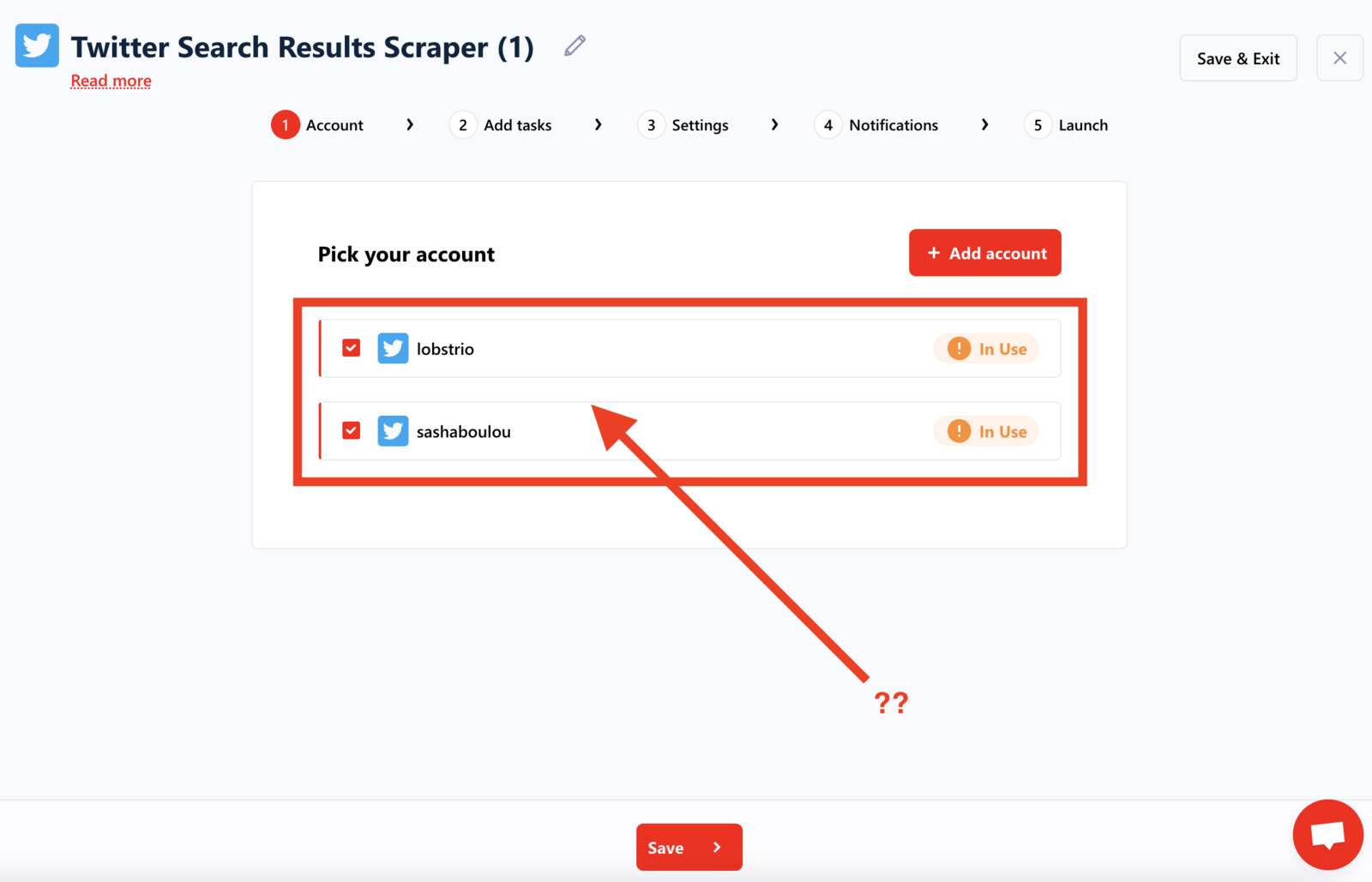
Standard accounts (Twitter, Facebook, etc.)
For most platforms, repeat the sync process for each account:
- Log in to account 1 → sync → log out from account 1.
- Log in to account 2 → sync → log out from account 2.
- Repeat for additional accounts.
LinkedIn and Leboncoin accounts
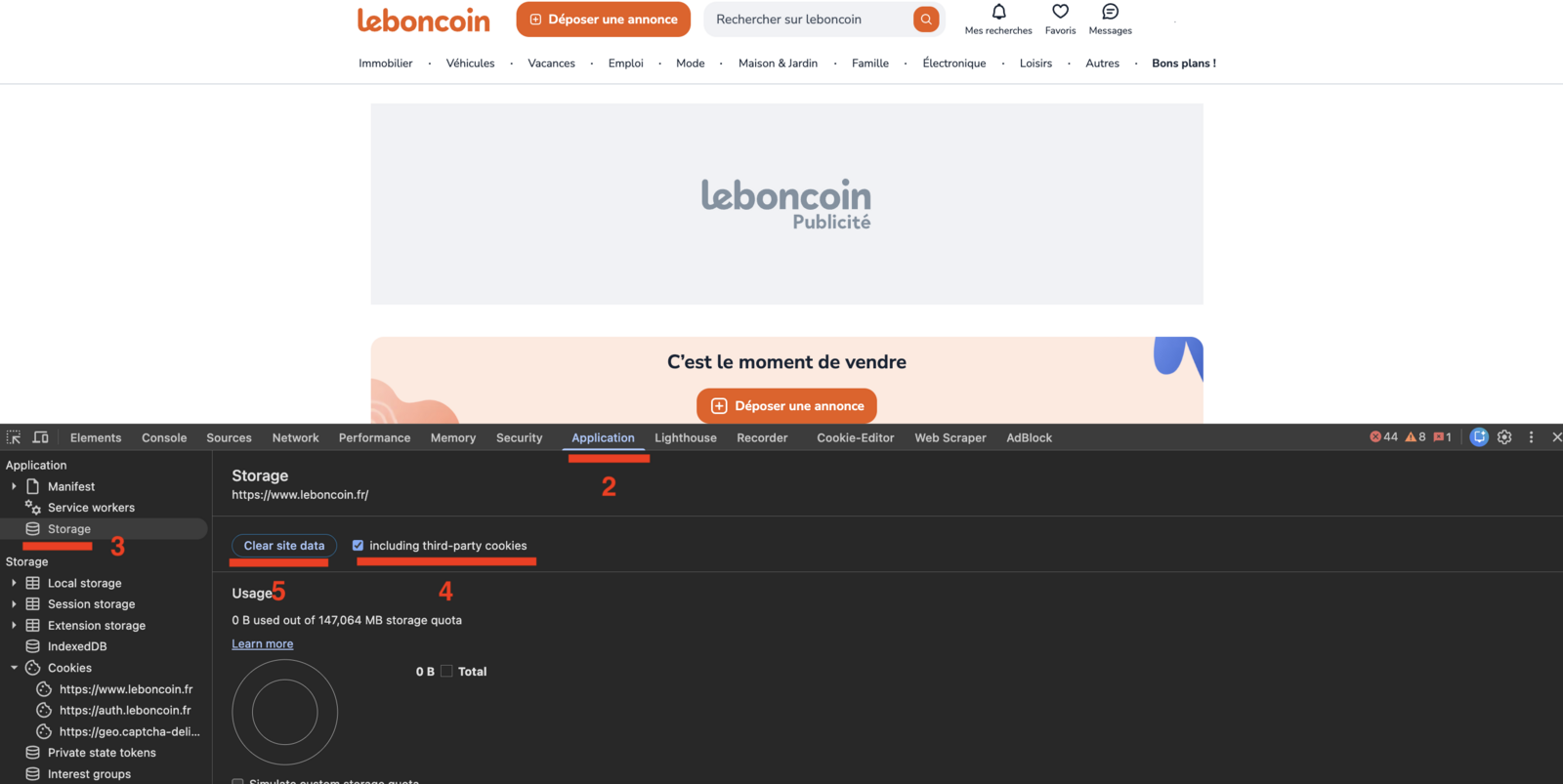
For LinkedIn and Leboncoin, logging out normally invalidates your cookies immediately. Clear your site data instead of using the normal logout button.
To switch between LinkedIn or Leboncoin accounts without breaking cookies:
- Log in to account 1 and sync it.
- Navigate to
www.linkedin.com(orleboncoin.fr). - Open Chrome DevTools (press
F12or right-click → Inspect). - Go to the Application tab.
- Click Storage in the left panel.
- Check "including third-party cookies".
- Click Clear site data.
- Log in to account 2 and sync it.
- Repeat for any additional accounts.
Refresh expired cookies
Login cookies don't last forever. When they expire, lobstr.io displays a warning: "this account needs to be updated". You'll need to provide fresh cookies by re-syncing your account.
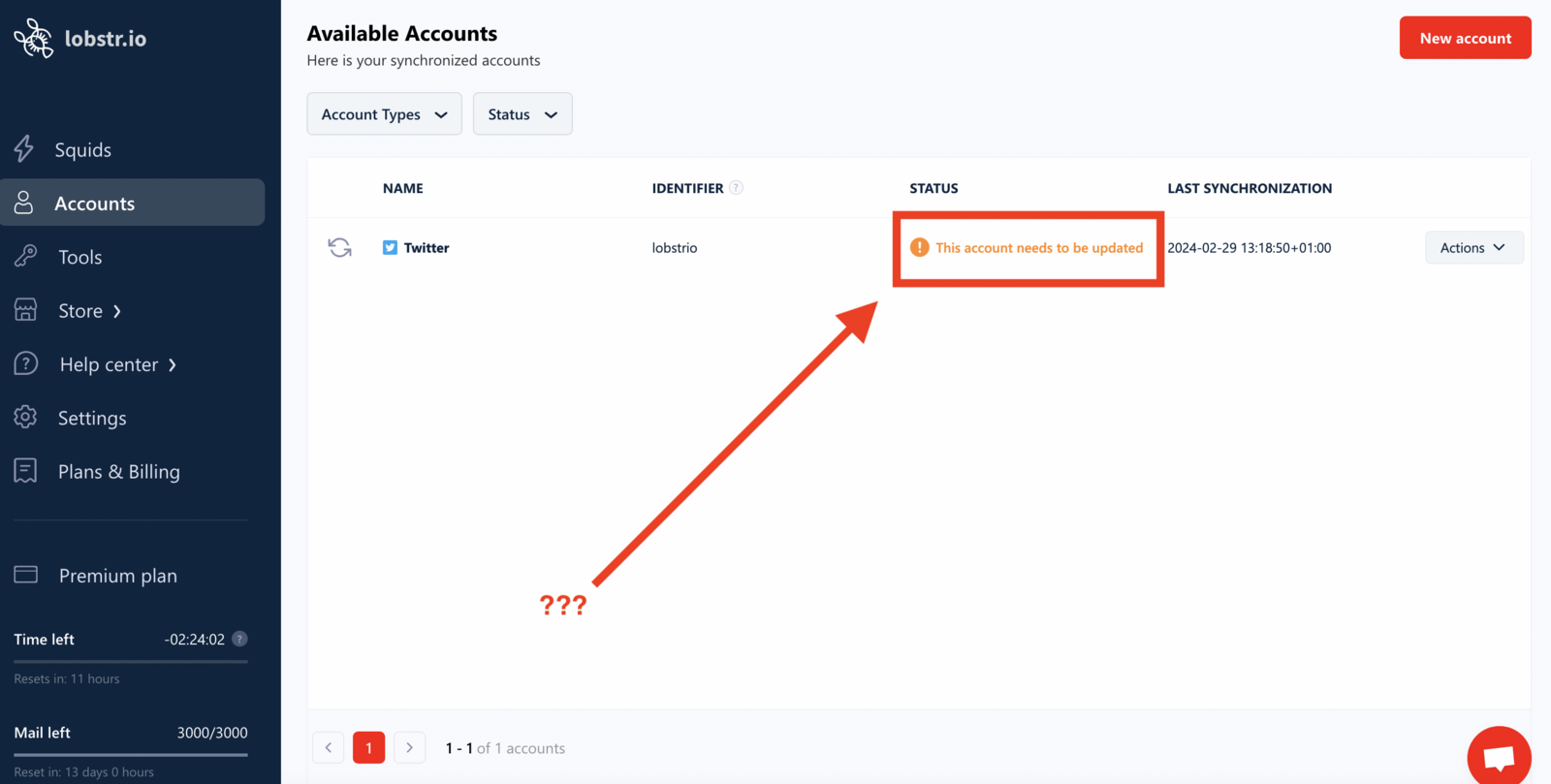
A synced session is dropped when the platform invalidates it — most often because the same account signed in somewhere else. If one account expires again and again within hours of every re-sync, someone else is very likely logging in to it. For Leboncoin, see Why your Leboncoin account keeps expiring.
Make sure you have the lobstr.io extension installed and are logged in to the relevant third-party account, then use one of the two methods below.
From the accounts section
- Log in to lobstr.io.
- Go to the Accounts section.
- Click Reconnect on the account's row. For an account that has not expired, click ••• at the end of its row, then Refresh cookies.
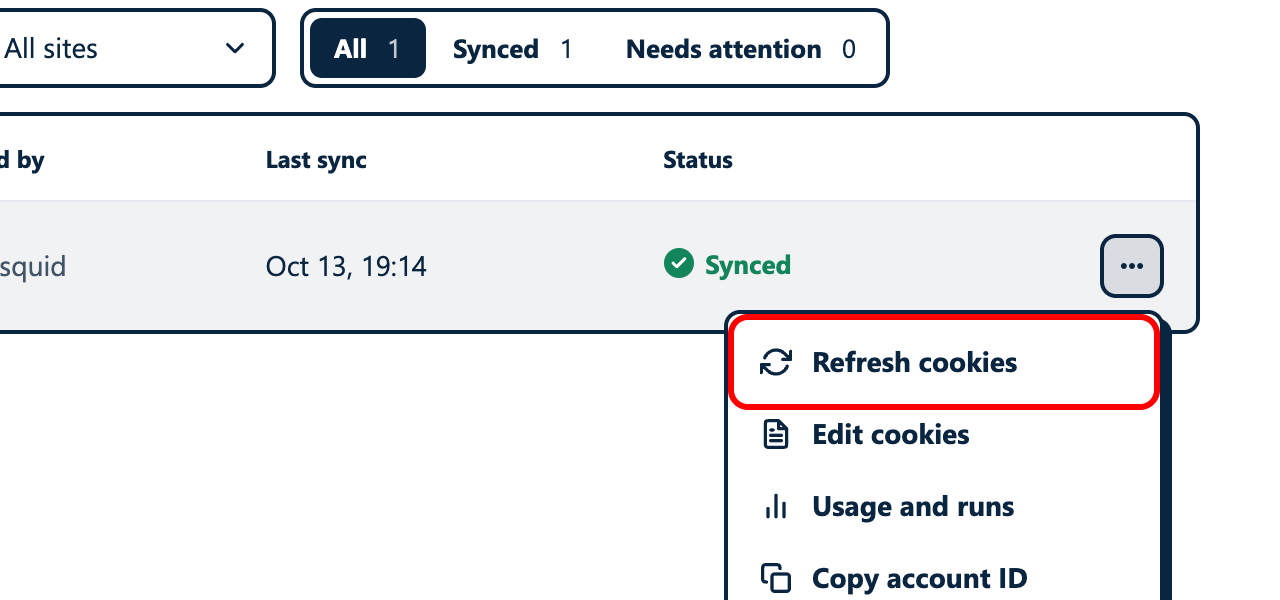
From a batch's settings
- Open the settings of a batch that uses the account you need to refresh.
- In the Accounts section, click Reconnect next to the expired account.
Approve the new synchronization in the extension’s confirmation window. After it succeeds, check the account’s status and last synchronization date. Your batches can then use the refreshed session.
Related articles
- Install the lobstr.io extension — downloads, updates, and troubleshooting
- Scraping Limits to Protect Your Accounts from Bans — platform-specific rate limits for synced accounts
- Account Slots — how concurrent scraping capacity works with multiple synced accounts
- Why your Leboncoin account keeps expiring — what to do when one account needs re-syncing every day