Convert a lobstr.io CSV export into an Excel spreadsheet
Open lobstr.io CSV exports cleanly in Excel using Google Sheets as an intermediary — three simple steps to get a properly formatted spreadsheet.
You no longer need this workaround to get an Excel file. lobstr.io exports directly in Excel (.xlsx) — just pick Excel in the download menu when downloading your results. This guide is only useful for converting CSV files you've already downloaded.
Have you tried opening a CSV file of scraped data in Excel, only to get a bunch of unreadable, cramped data?
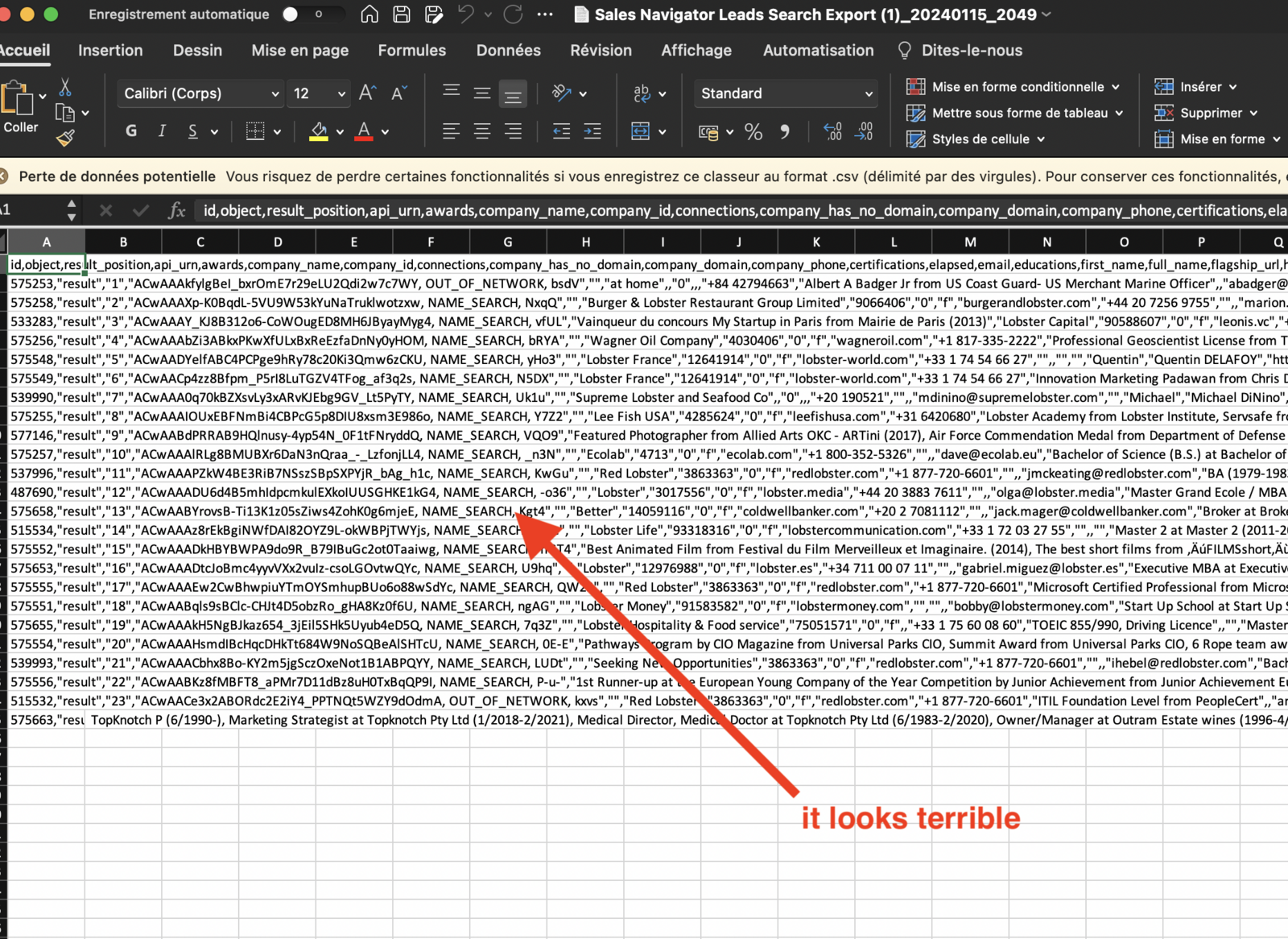
The reliable fix is to route through Google Sheets first, which handles the import correctly and then lets you download a clean .xlsx file.
Step-by-step instructions
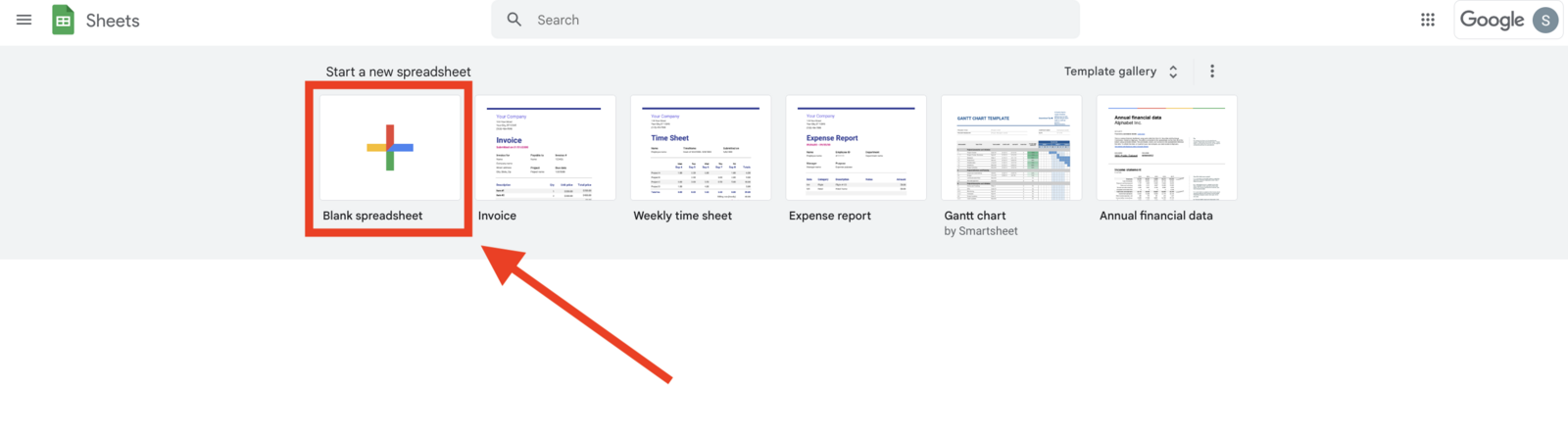
- Create a Google Spreadsheet
Open the Sheets home screen at sheets.google.com and click + to create a new blank spreadsheet.
- Upload the CSV
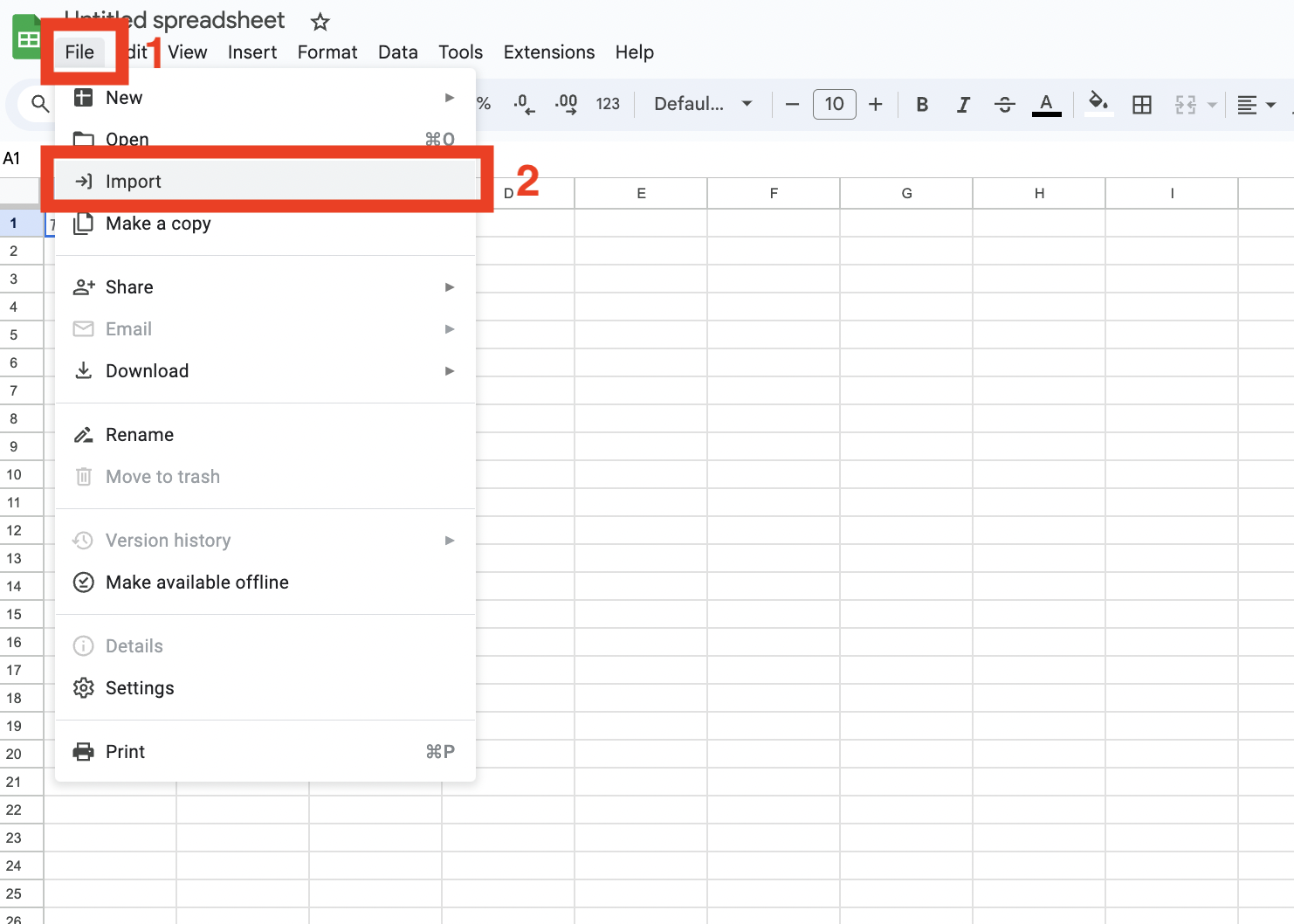
Click File, then Import.
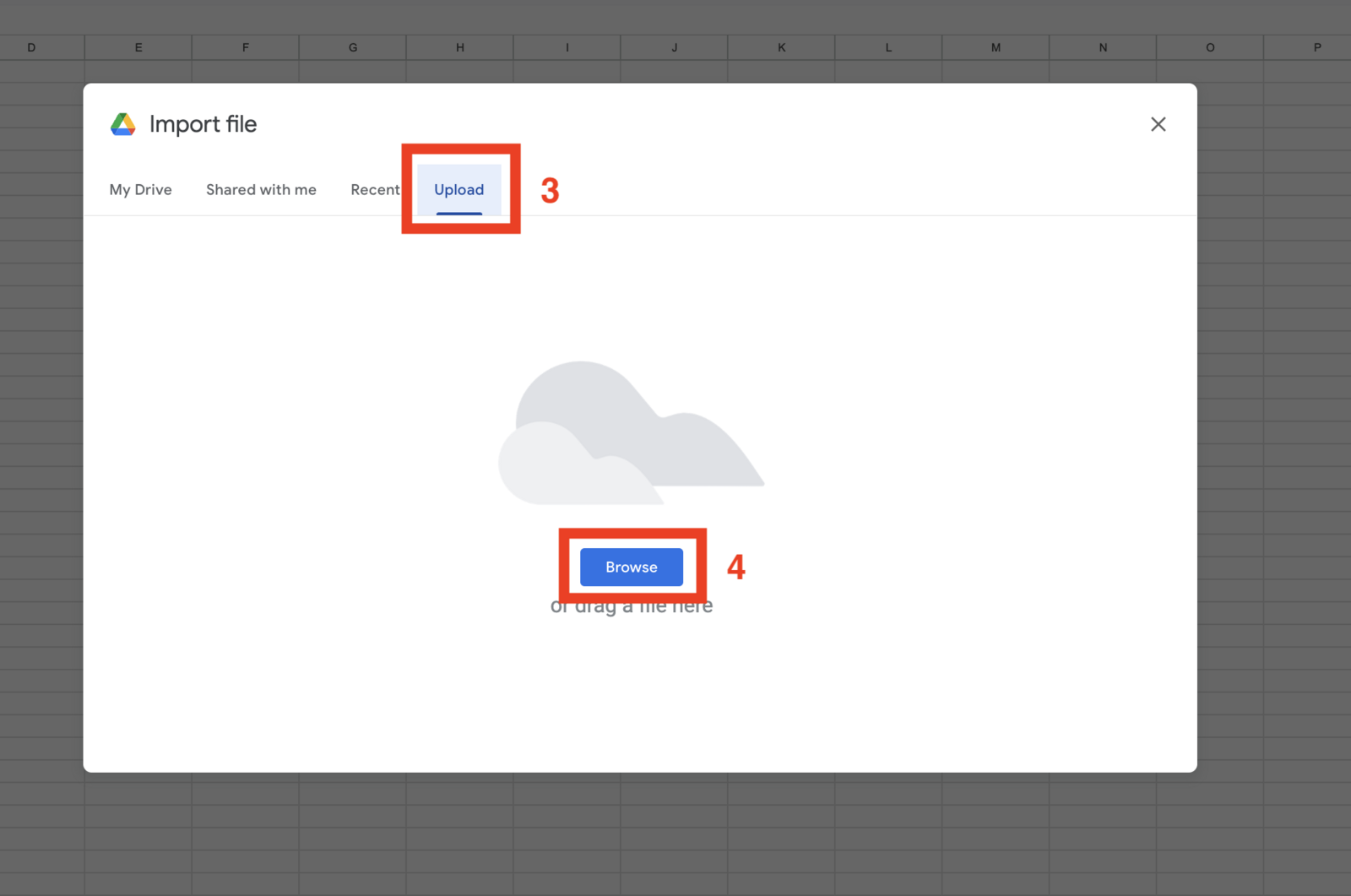
Click the Upload tab, then Browse and choose the CSV file you downloaded from lobstr.io.
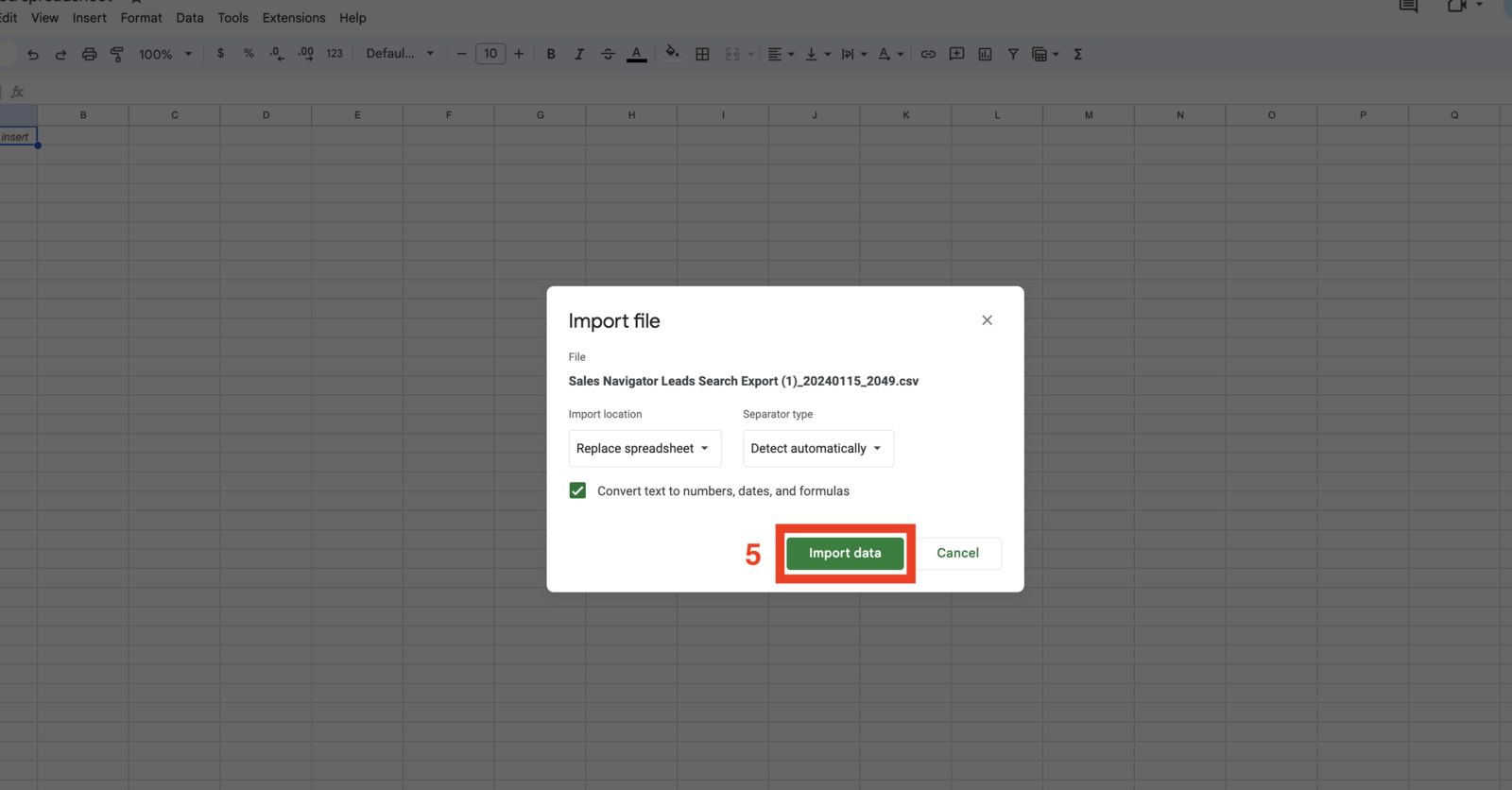
Click Import data. Google Sheets creates a new file with each column properly separated.
- Export to Excel format
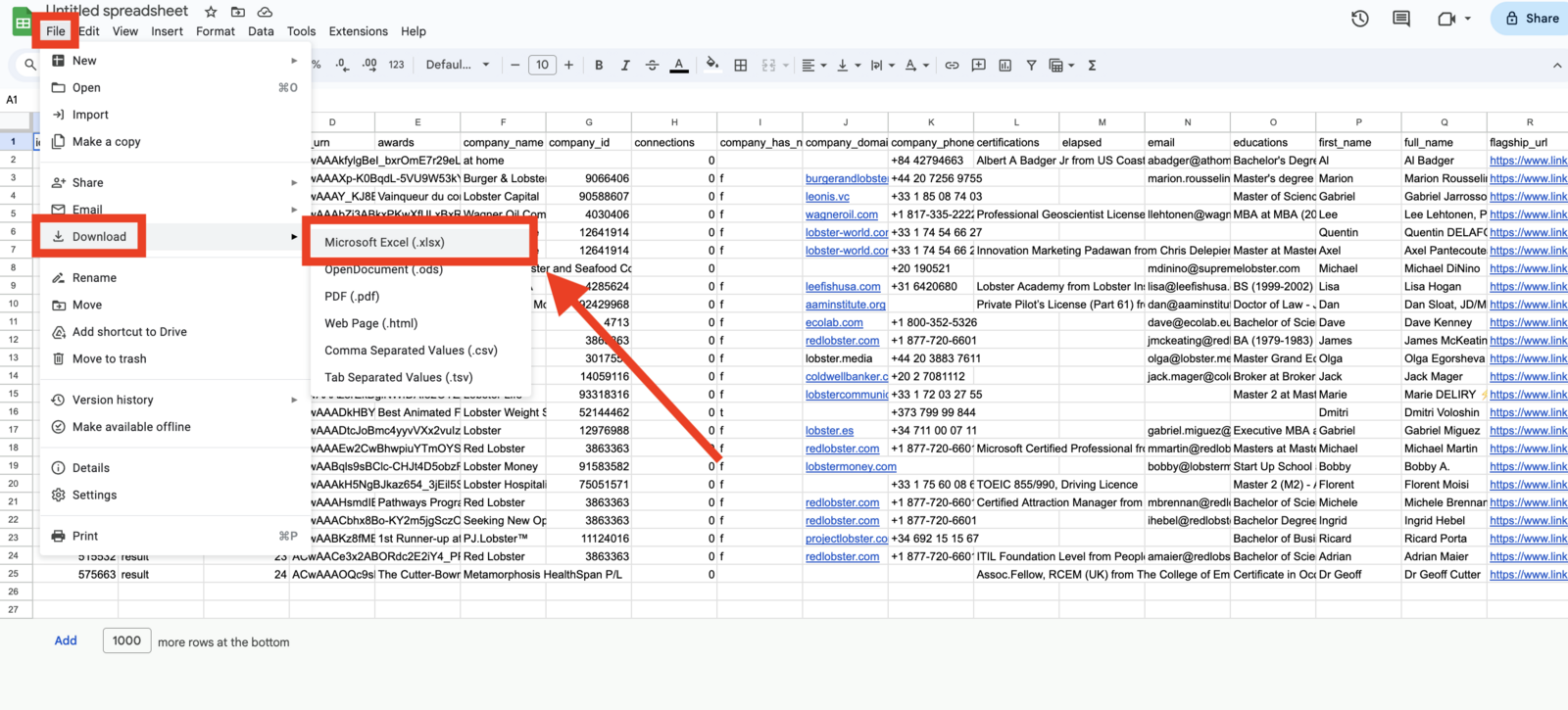
Click File → Download → Microsoft Excel (.xlsx).
Download > Microsoft Excel" />
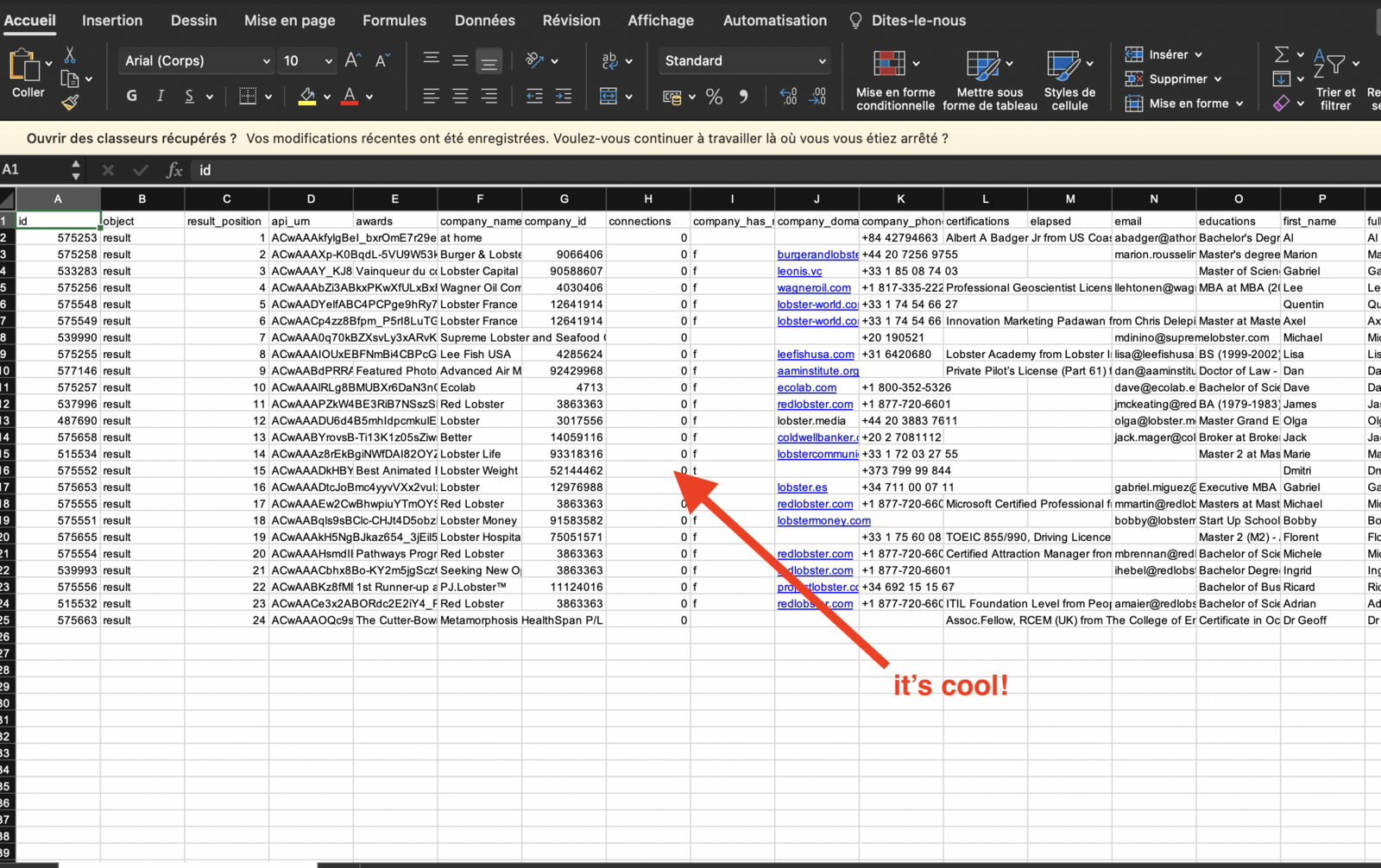
An Excel file downloads to your computer. Double-click to open it — you now have a clean, structured, reliable Excel file.
If you regularly need your data in Excel, select Excel (.xlsx) as the format when downloading results — no conversion needed. And to push results to a spreadsheet automatically after every run, set up the Google Sheets export integration.